
🎞️ Premiere Pro Editing Techniques
Editing is where your video goes from good to great. With Adobe Premiere Pro, you can take your AI-generated footage and enhance it with timing, flow, pacing, and effects. This guide walks you through beginner-to-intermediate techniques tailored to short-form content featuring anthropomorphic characters.
⏱️ 1. Start with the Structure
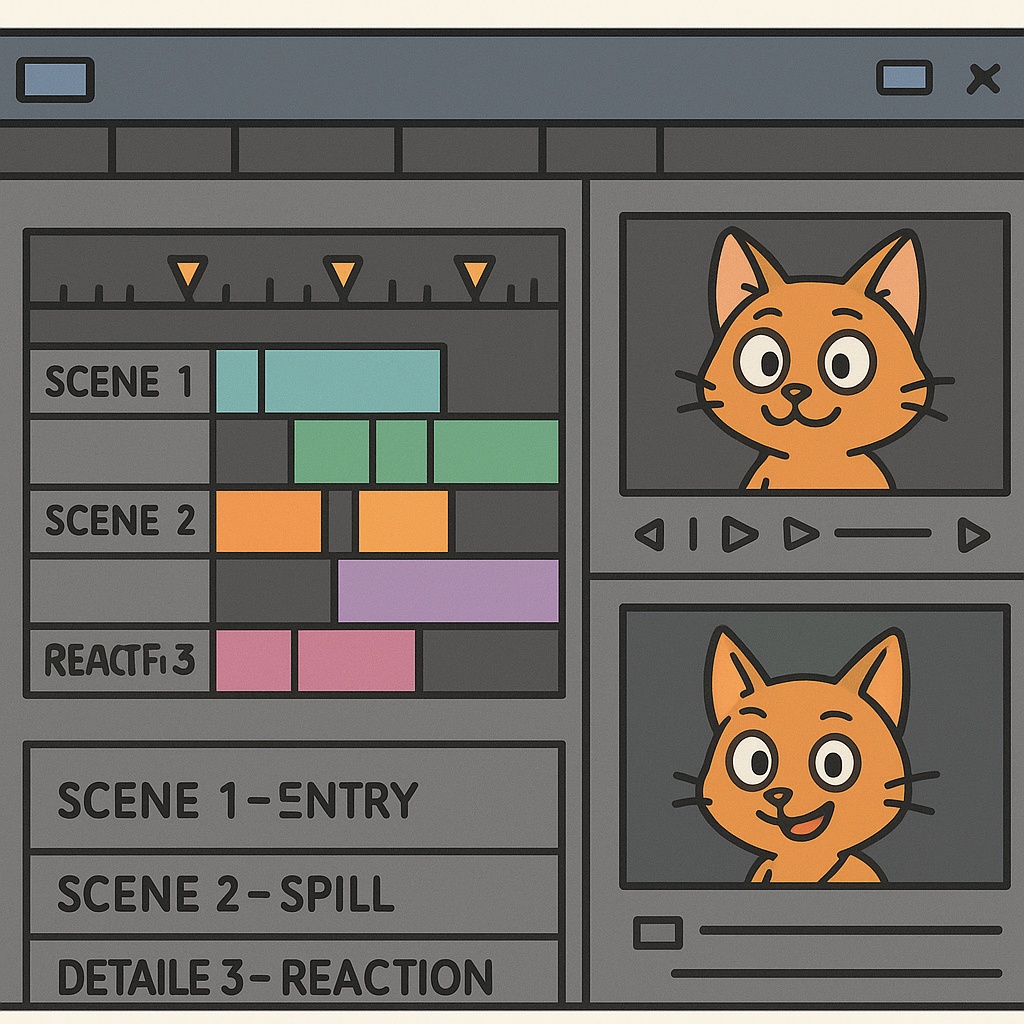
Drop your clips on the timeline in the intended order. Add scene numbers or labels (Scene 1, Scene 2, etc.) to stay organized.
- Use color-coded labels to mark action, reaction, or joke beats.
- Add a black frame or hold frame between scenes if needed for pacing.
✂️ 2. Master the Cut and Zoom
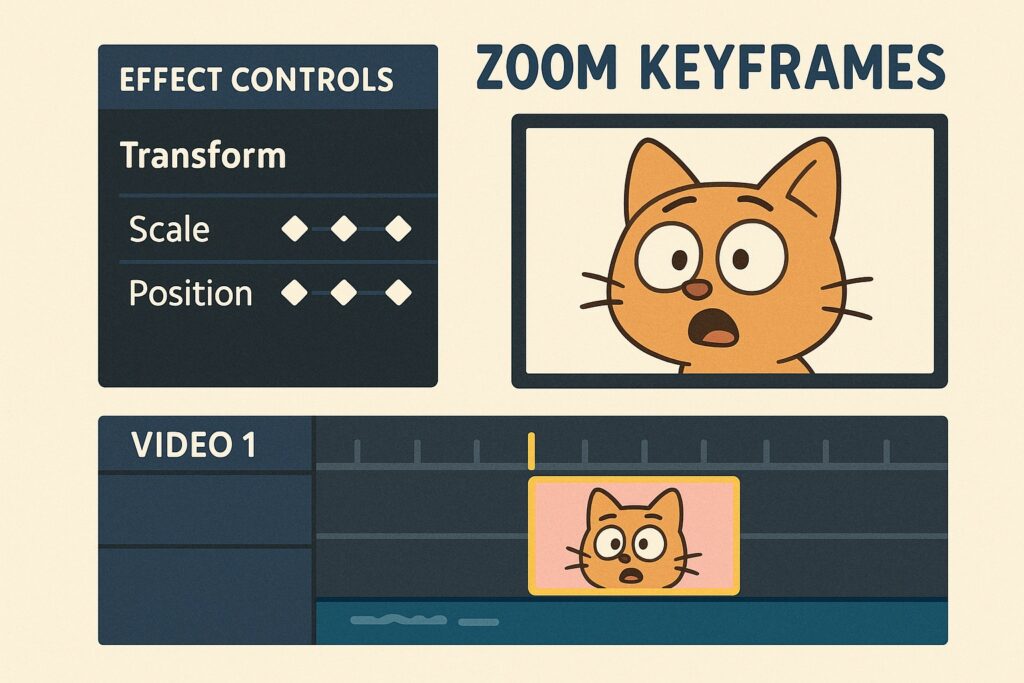
Quick cuts and zoom-ins help keep viewer attention. Premiere Pro’s keyframes let you animate the scale or position of clips.
- Zoom on character reactions for comedic effect
- Use 0.2s to 0.5s cuts for fast pacing
- Use “Ease In/Out” for smoother zooms
🎚️ 3. Adjust Timing to Fit the Beat
AI clips don’t always come with perfect timing. Trim or extend clips to match background music, sound effects, or visual beats.
- Sync actions to sound effects (e.g., whoosh, splash, pop)
- Cut on motion for smoother transitions
🔤 4. Add Text, Subtitles & Effects
Text overlays help reinforce the joke or narrative.
- Use bold, short captions (1–3 words)
- Place them near the speaking character or in the lower third
- Use “Essential Graphics” for stylized presets
Subtitles improve accessibility and retention — auto-generate and then fix manually.
🔉 5. Layer in Sound Design
Sound brings your visuals to life.
- Use cartoon sound libraries for impact (bonks, zips, splashes)
- Add ambient loops (café chatter, street noise)
- Ensure consistent volume and transitions
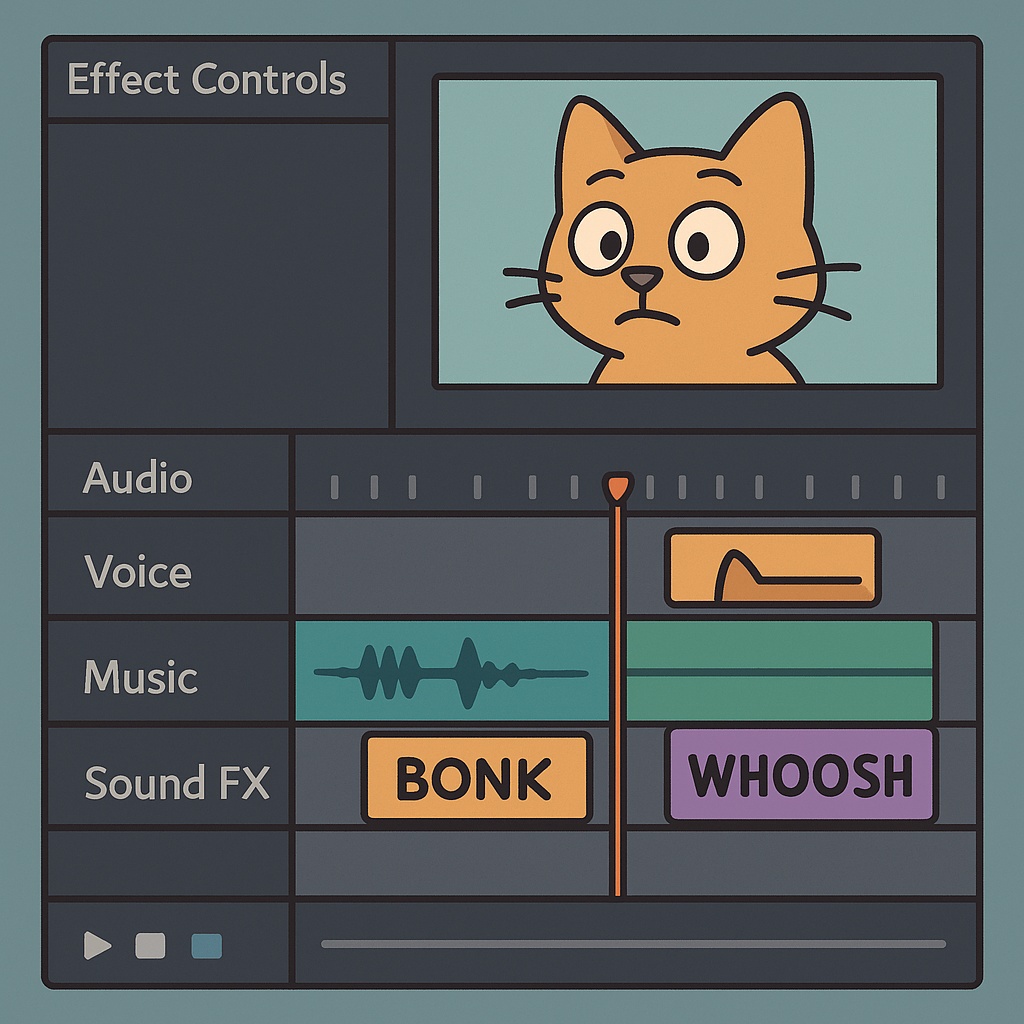
📷 Insert Image 3 here
Screenshot of Premiere Pro with layered audio tracks: music, voice, and effects with visible waveforms.
✅ 6. Final Pass: Export Smart
- Use 1080×1920 (vertical) for TikTok/Shorts
- Bitrate: 10–15 Mbps for clarity
- Export using H.264 with “Match Source – High Bitrate” preset
- Always preview before posting
🔗 What’s Next?
Want to build repeatable content workflows?
👉 Next: Short Video Template Strategies